

Self-activation
Instructions for obtaining the SimplySign mobile signature – Self-activation.
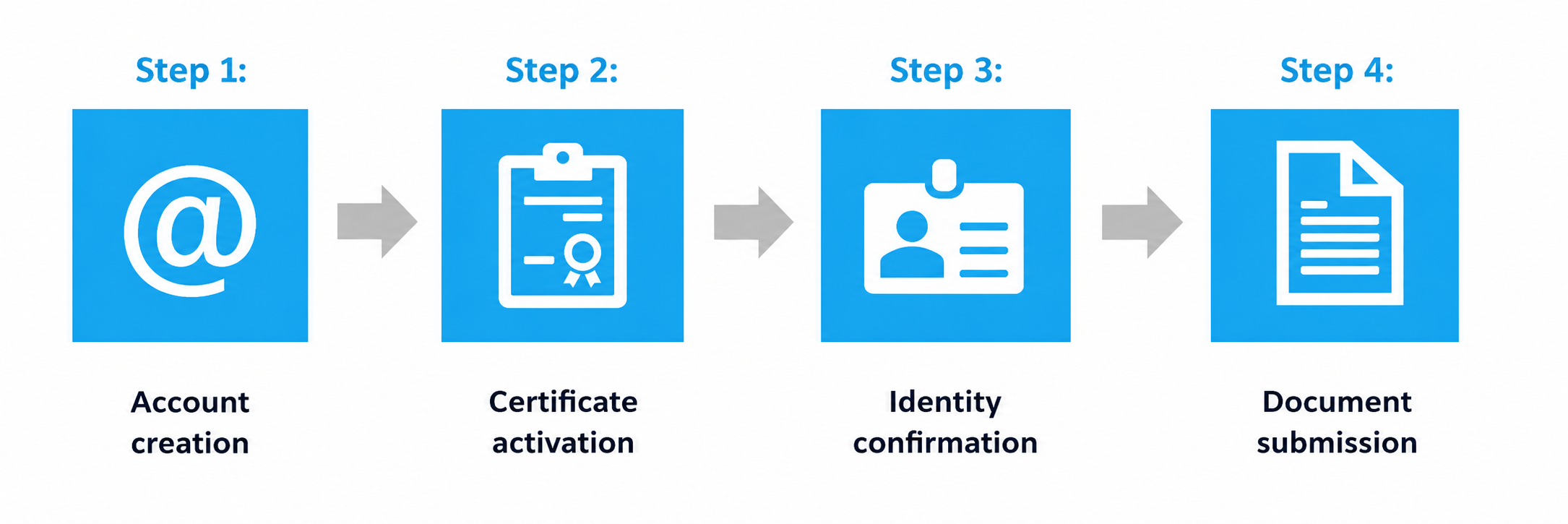
After successfully completing the identity verification process, you will receive an email from Certum PCC confirming the issuance of the certificate. This message will contain the necessary instructions for installing the certificate and activating the signature.
Please note!
During activation, make sure to save the PIN code and the PUK code (the most important code) in a secure place known only to you. More details can be found in the final section: “Resetting the PIN code using the PUK code”.
More information about certificate installation can be found at → SimplySign certificate installation guide
You can also find installation details in the video tutorial → SimplySign installation video
To activate the certificate and sign documents on a smartphone or tablet, you must install the SimplySign mobile application.
The application is available for download:
– from the App Store (for iOS devices – application name: “Certum SimplySign”),
– from Google Play (for Android devices – application name: “SimplySign”).
You can also download the application from the website: Certum software page
To sign documents on a computer, download the proCertum SmartSign software package together with SimplySign Desktop.
Go to the software download page → proCertum SmartSign download page
Your login is the primary email address provided in the application form.
Your login “password” is the currently active TOKEN code generated in the SimplySign application on your smartphone (option available at the bottom of the application screen – Generate Token).
To log in to the SimplySign application on your smartphone, enter the primary email address provided when submitting the certificate application (this address is assigned to the SimplySign account).
- Launch the SimplySign Desktop application (blue icon) on your computer.
- After opening the cloud certificate login window:
– on Windows, simply double-click the SimplySign Desktop icon to open the login window,
– on macOS, first launch the SimplySign Desktop application. The running application should appear in the application bar (gray monitor icon with a red X inside a circle). Then click the icon and select “Connect to the cloud” → the login window should appear.
- As the login, enter the email address provided in the application form (the notification about certificate issuance was sent to this address).
- As the password (in the “enter token” field), enter the currently generated token from the previously launched SimplySign application on your phone, then click “Log in”.
After logging in, you can use the certificate on your computer.
Documents are signed using the dedicated ProCertum SmartSign software (green application icon).
Watch the video instructions → YouTube video guide
or in Adobe Acrobat Reader DC
Watch the video instructions → YouTube video guide
- Launch the SimplySign application on your smartphone.
- Tap the “Log in and sign” button at the bottom of the application.
- After entering your login details, the “My Documents” window will appear. In the “To Sign” tab, tap the blue plus icon in the center of the screen.
- Select the document you want to sign and tap the blue “Sign” button located at the bottom left side.
- Enter your card PIN and tap “Sign document”.
- A confirmation window will appear indicating that the document has been signed. You can now send it further or select another document to sign.
Instructions for verifying a document signed with the SimplySign service in the proCertum SmartSign application → YouTube verification guide
A PDF file signature can also be verified in the signature panel in Adobe Acrobat Reader DC.
Warning!
Entering the wrong PIN code three times blocks the ability to create signatures.
In such a situation, the only option is to use the PIN recovery/reset procedure with the PUK code assigned during the certificate installation — which is why it is so important to save it during the installation process!
To restore the ability to use the signature, you must perform the PIN reset procedure using the saved PUK code.
To do this, you should:
- Prepare your identifier/login (primary email address).
- Launch the SimplySign application on your mobile device and use the “Generate Token” function. You will need to copy the one-time authorization code (Token) required to log in to the page indicated below.
- Go to the Certum System → “Log in to the Certum System” and log in using your Login and Token.
If you did not find the answer to your question, please visit Certum Help Center or contact us by email at biuro@wlasnypodpis.pl.